JS: Setting up the environment
Theory: Installing JavaScript
To run JavaScript code, download and install Node.js.
The first option is to do this manually in one of the various ways described in the documentation.
The second option is to use the package manager. Open the terminal and run the installation command appropriate to your operating system:
Ubuntu or Ubuntu on Windows
macOS
Interactive code execution
Now let's make sure that Node.js is installed and running. Some operating systems will probably require you to restart the terminal or even reboot.
Open the terminal and run the following command:
If all goes well, it's time to run the JavaScript code.
Executing node will start REPL. This is an environment similar to the conventional terminal, but it uses JavaScript code instead of Bash commands. You can use it to type a piece of code and immediately execute it by pressing Enter.
This is very convenient to quickly check how something works, as well as for debugging and a few simple calculations. REPL can use variables and remembers previous ones input:
There are several options to exit REPL:
- Type
.exitand press Enter - Press CTRL + C twice
- Press CTRL + D
This will bring you back into the normal shell.
Keep the concept of Node.js REPL and shell (e.g. bash) separate: typing node runs a program that has nothing to do with the shell in which it is run. Any attempt to use this REPL as a normal shell will result in various syntax errors:
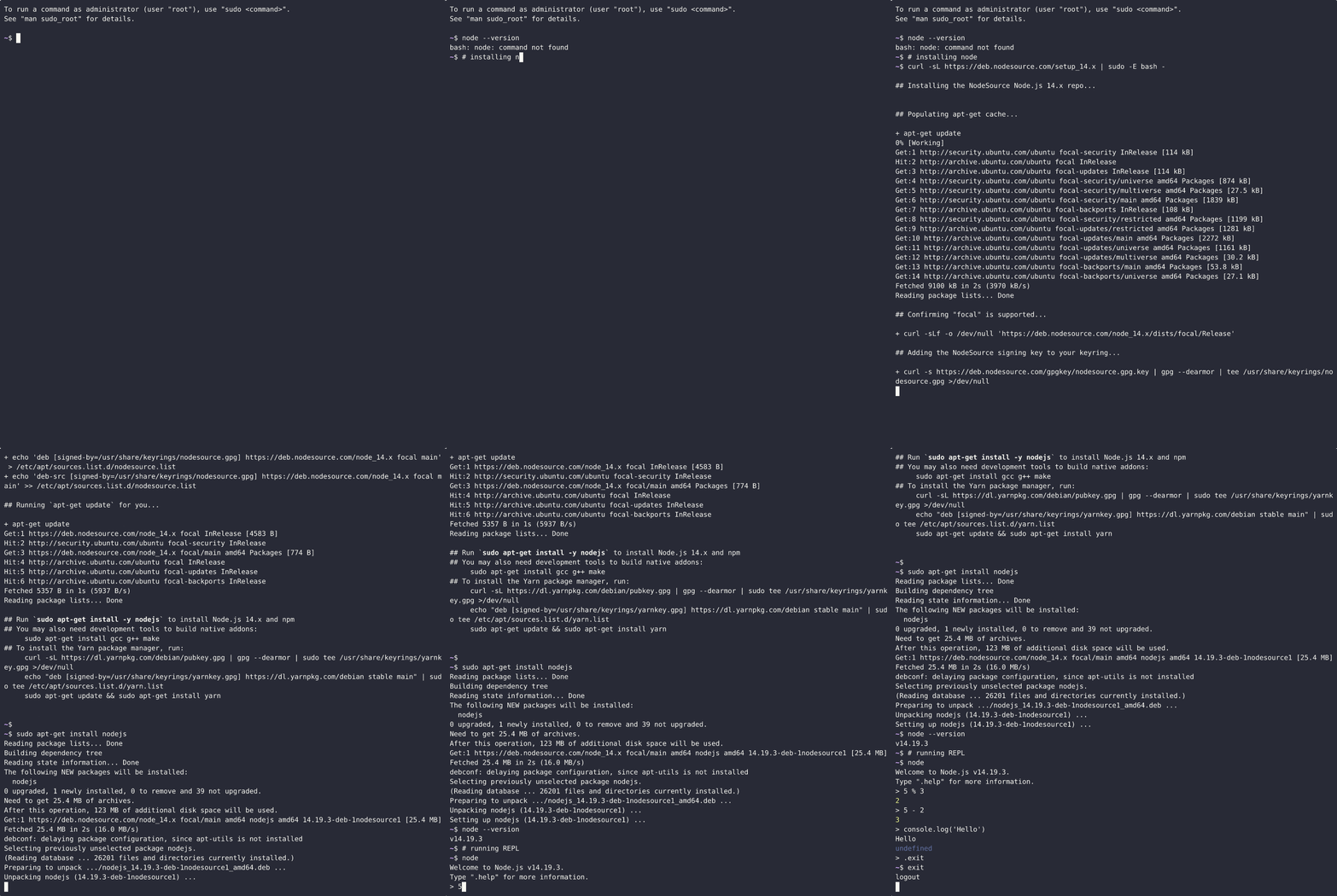
Example of installing and running Node.js on Ubuntu
Running code from files
REPL is not suitable for full and convenient development, which is why the code is written in plain text files on the developer's computer. What editor should be used for this purpose? The most common and convenient code editor by far is VS Code. Download and install it, and explore its interface. It's got a lot of built-in features that can be extended with plug-ins.
Open the editor and create an index.js file with the following contents:
VS Code has built-in tools to run the code, but for now, while you're still learning, you should learn how to run code manually. Open a terminal in the directory where you created the file and run the following command: