CLI fundamentals
Theory: Manipulating the file structure
You can not only view the file structure, but also modify it in all kinds of ways. In the last lesson, we learned how to create files via stream redirection, but you can also do it directly.
Note that the ability to modify the file structure is tied to user rights. You will get an access error If you don't have the required rights. The place where you are guaranteed to be able to experiment is your home directory. You have write permissions for everything inside it.
For the examples in this lesson, we created a test catalog in the home directory. That is, all demonstrated commands are executed in the directory at: ~/test.
It's common to use the touch utility to create files.
The main purpose of this utility is to change the time the file was last accessed, but it has a side effect. If the file does not exist, it will be created - which is why it is used to create files, although this is not its main purpose.

Files are deleted with the rm (remove files) command:

On *nix systems, there is no such thing as renaming a file. Renaming is always equivalent to moving, which is done with the mv (move) command

The cp (copy) utility is used to copy files and directories. Its first argument is the source name (from where), the second is the receiver name (to where).
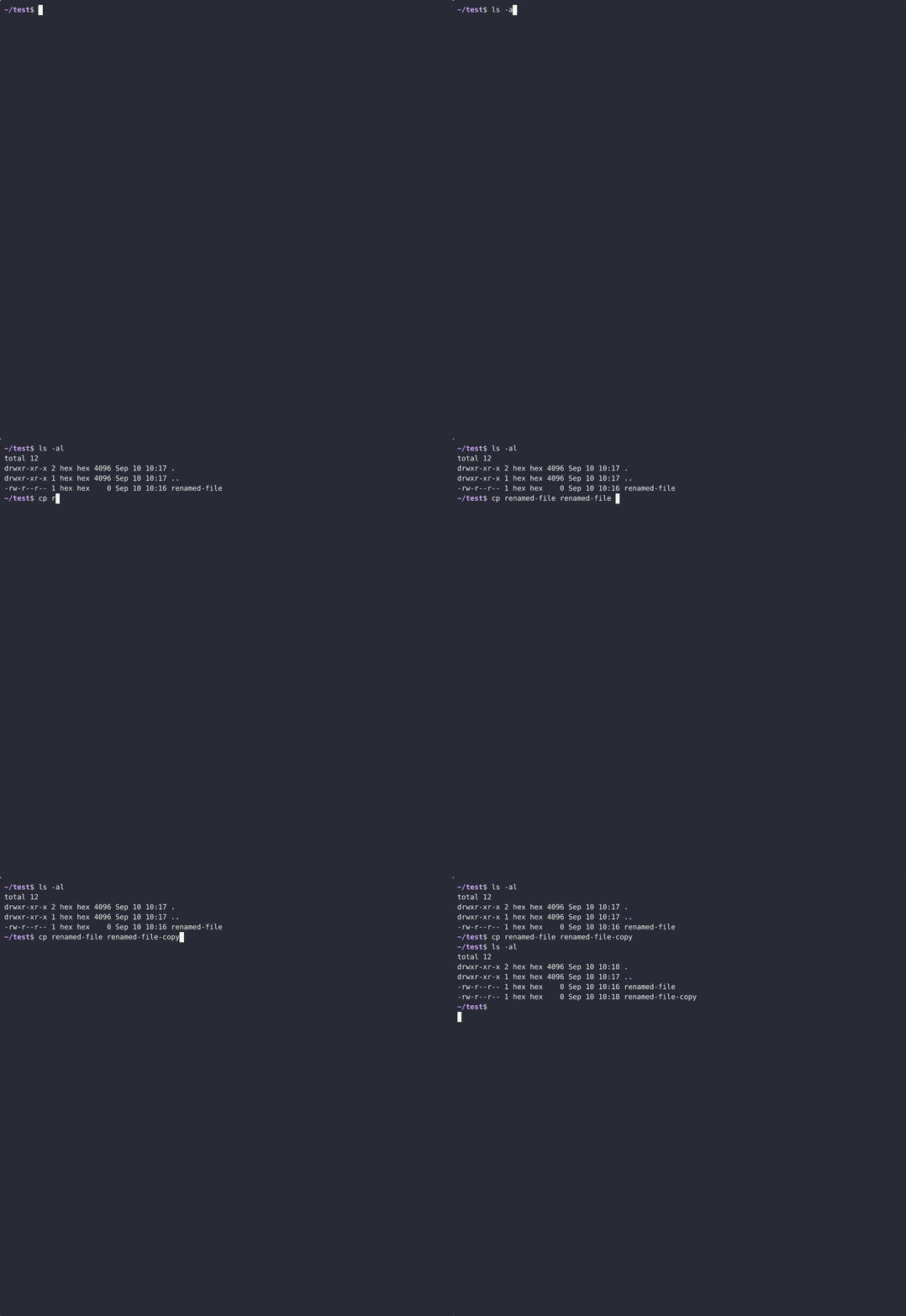
To copy the directory, you must add the -r (recursive) flag.
All of these and subsequent utilities work with files and directories located anywhere in the file system. So you can always pass any path: touch /tmp/tempfile.
The utilities for working with directories are a little different. Creating a directory is done using the mkdir (make directory).
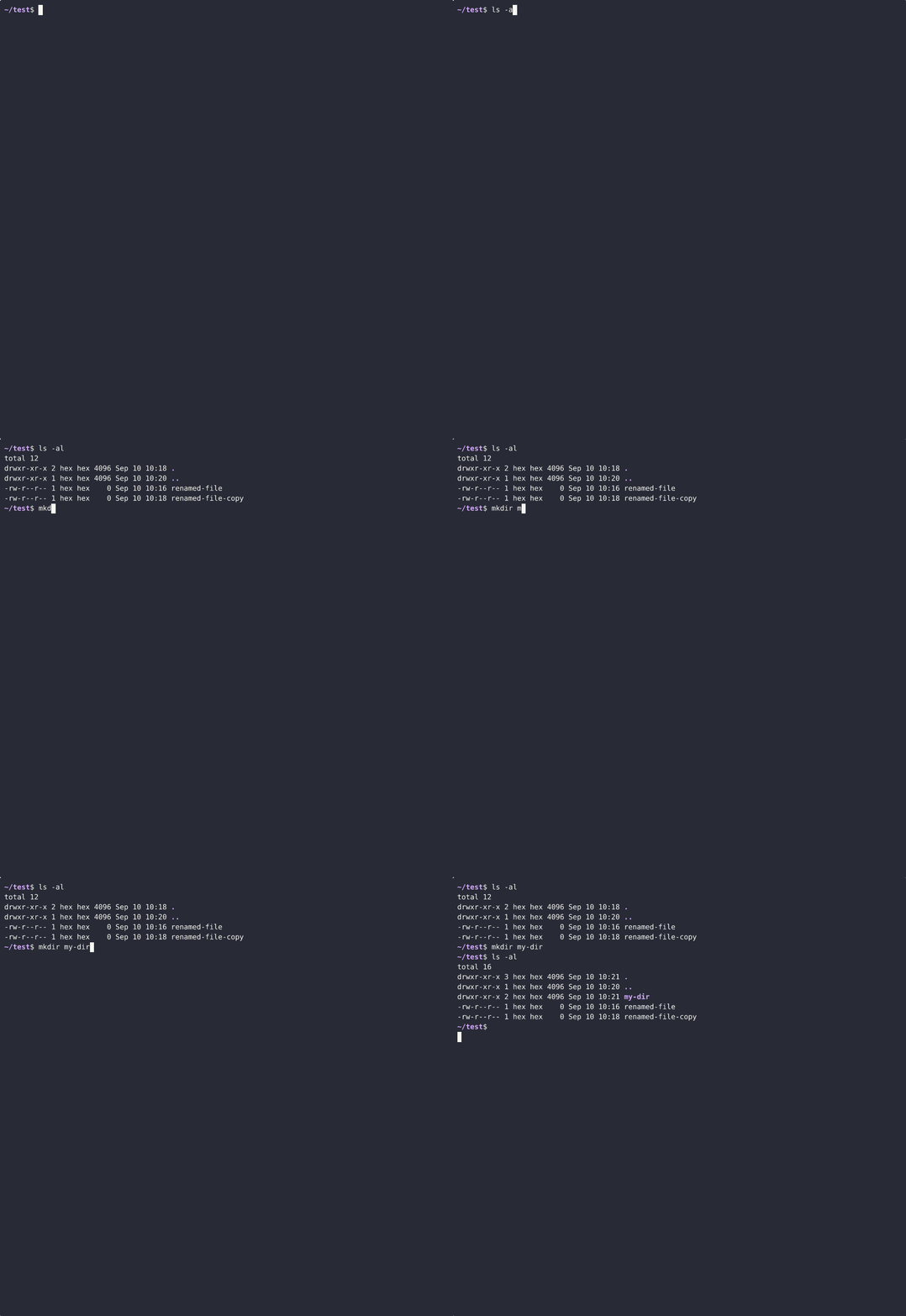
By default, this command does not create nested directories:
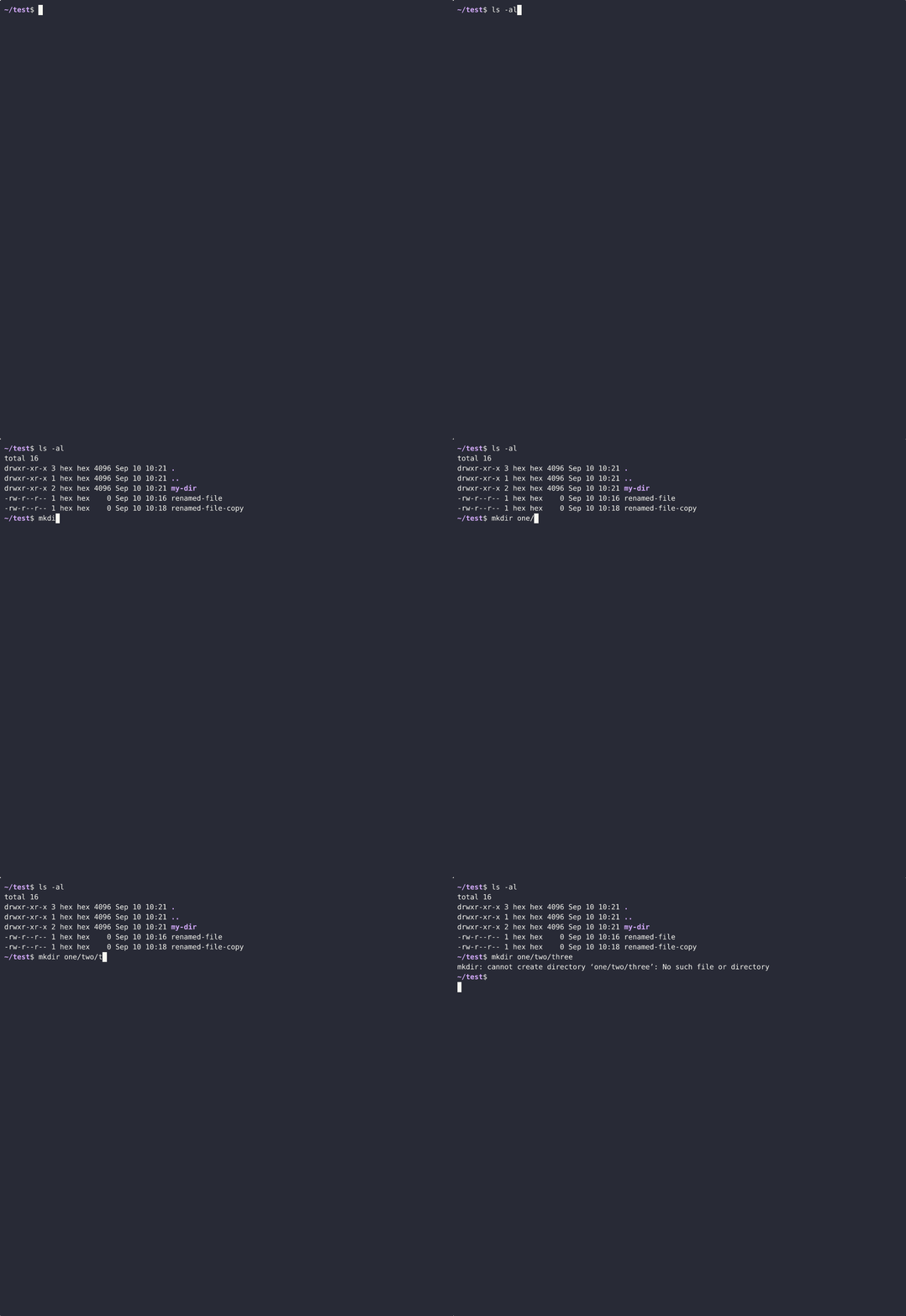
In this situation, you either have to create each directory separately or use the -p flag, which creates directories recursively.
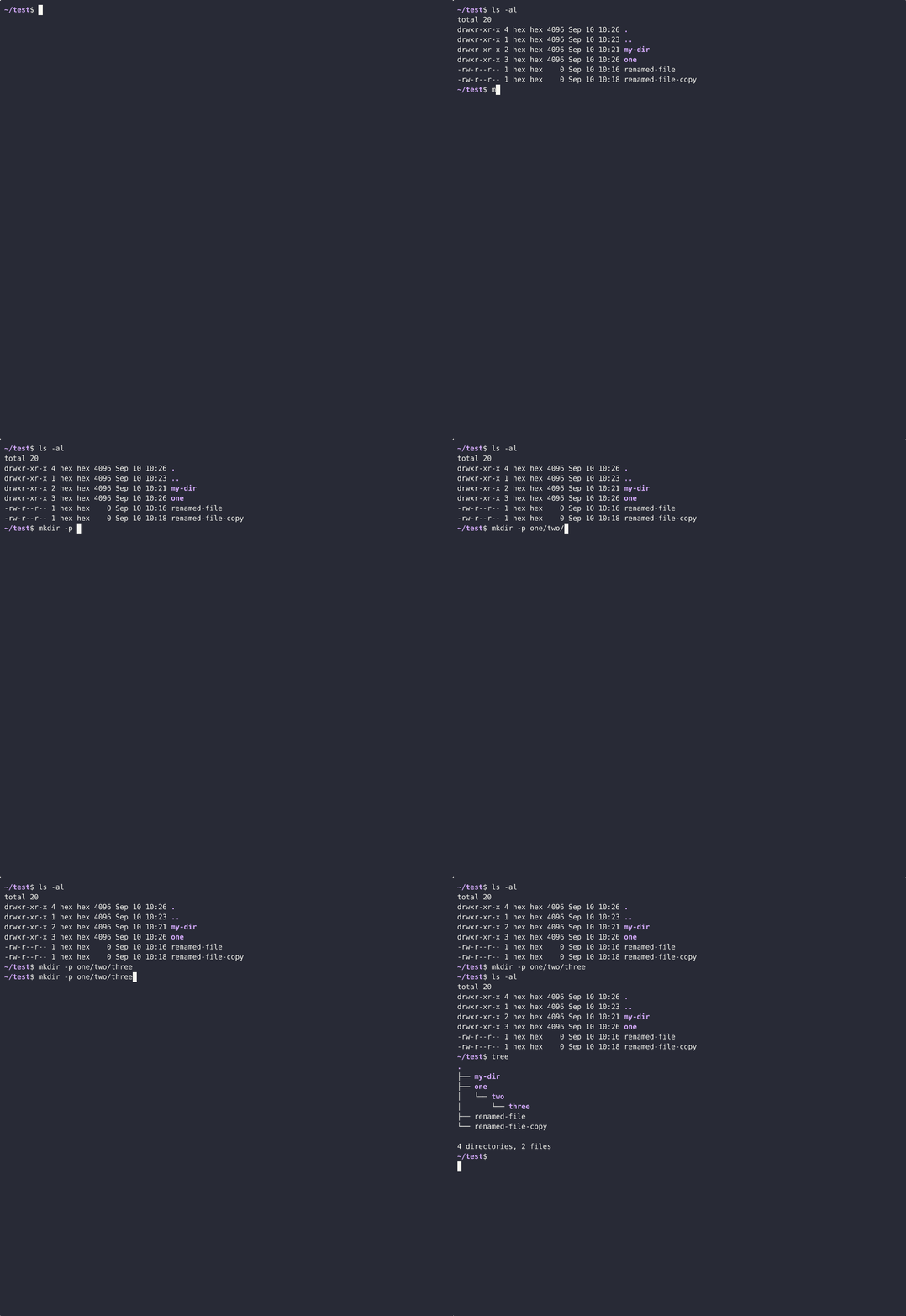
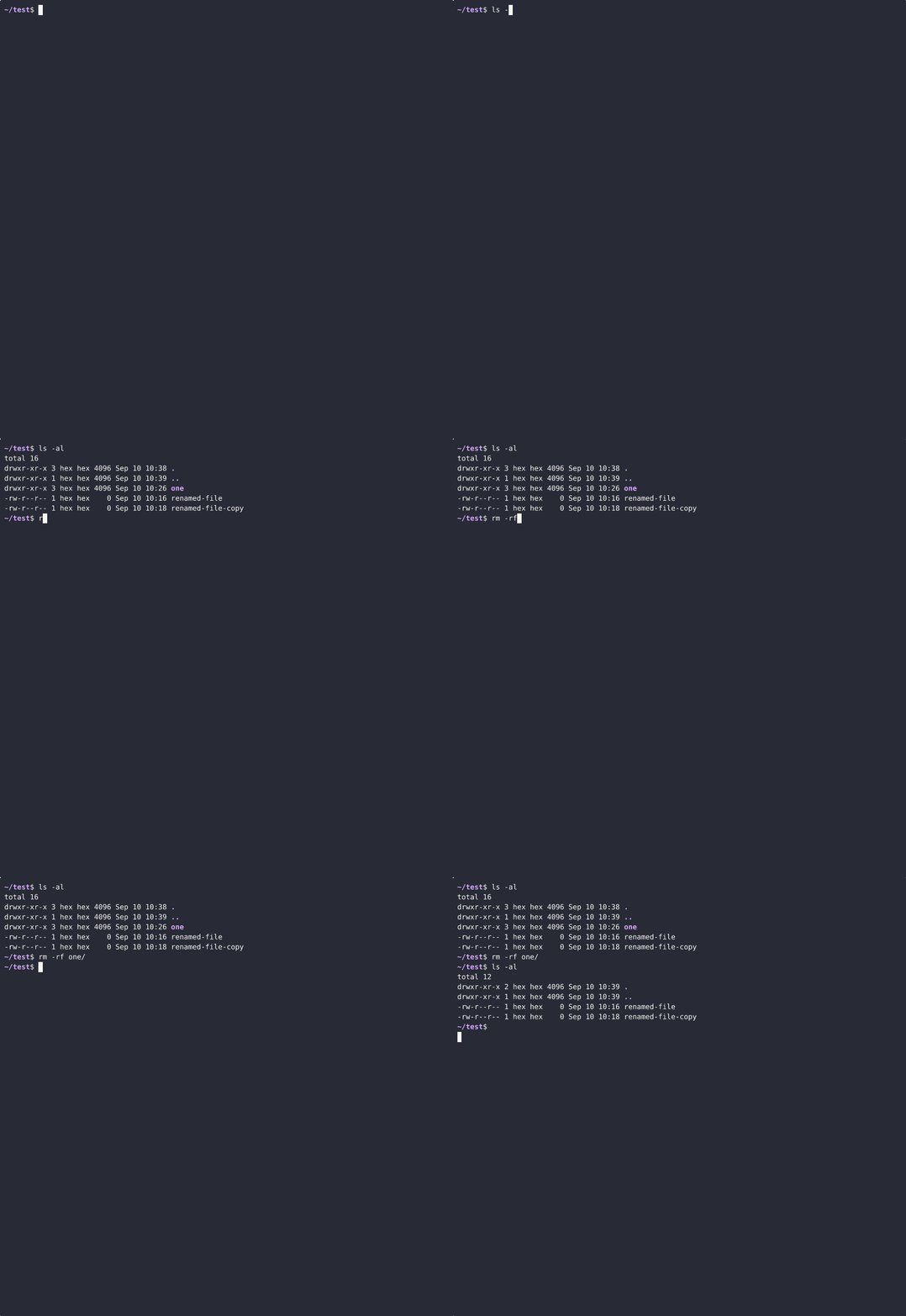
Deleting directories is done with the same command as deleting files, but without flags, it gives a warning:
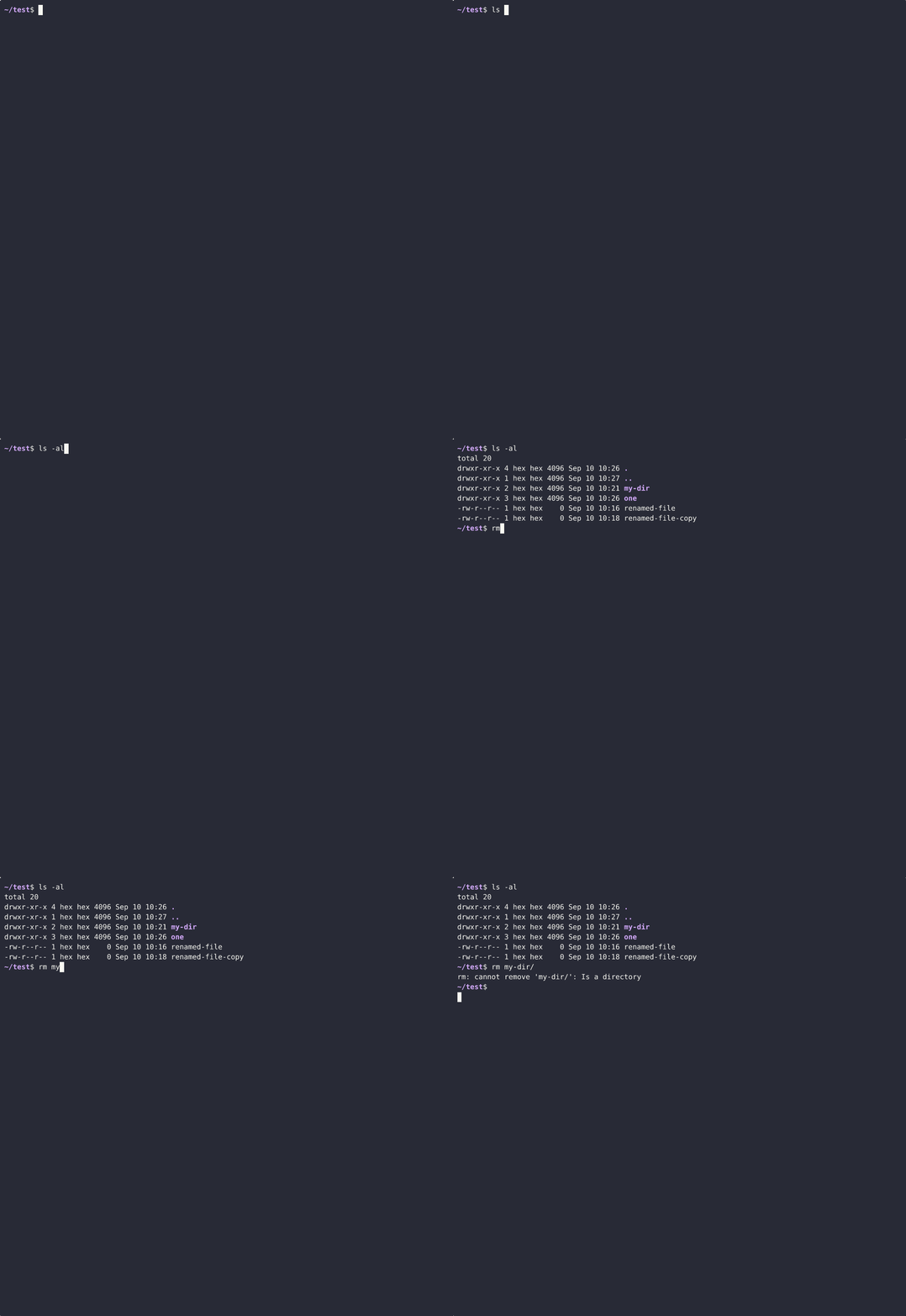
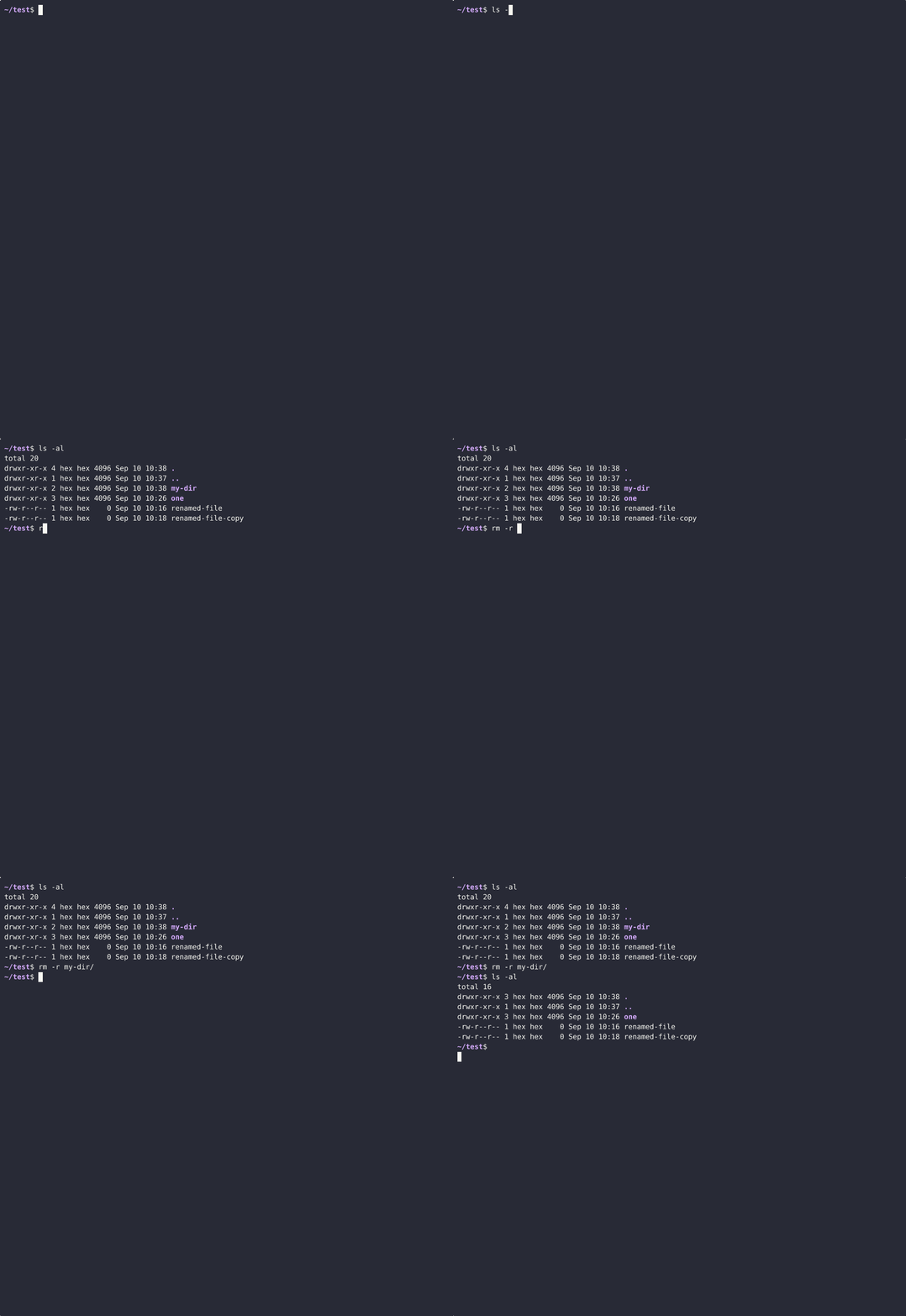
To avoid an error, you must add the -r flag. It enables recursive (r — recursion) deletion mode, i.e., everything inside every subdirectory will be visited (and deleted).
If there are files or directories with restricted access rights inside the directory, e.g., read-only, rm will check with each file if it should be deleted. If you are sure you want to delete everything, add the -f(or --force) flag. This flag allows you to ignore non-existent files and not ask for confirmation to delete them. In this case, rm will delete the entire directory without any questions.